Form Builder in ICANotes
Creating a Form Letter is a quick and easy way to generate a letter on behalf of you or your practice. Possible reasons for creating a form letter may be to send an appointment reminder or to create a ‘thank you’ letter.
From the Chart Face, click the  button.
1. On the left side of the Form Builder screen, you will see the working text of your letter. You may manually type in this field, or use any Custom Buttons you have listed in the column on the right to enter text. If you find that you are entering the same (or similar) text into multiple Form Letters, we recommend that you create a Custom Button containing the text content to save time.
2. At the top, you will see the letterhead and the name of the selected clinician; these can be changed by...
3. Selecting a clinician name for 'Name on Form Letter' and/or adjusting the Location with 'Location on Form Letter'
4. You can insert patient information into the form builder field much like you can with custom buttons. Select a term from the dropdown menu and click the Insert key to insert into the form letter field. 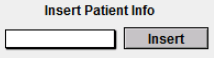
5. The  button will allow you to print the letter as it is displayed.
6. The  button deletes the letter and returns you to the Chart Room.
7. The  button is similar to “Compiling” a note. It will save the text of the letter in the patient’s Chart Face alongside their notes.
8. Custom buttons can be created for future form letters or common phrases. You can access these with this button: 
For more information on Custom Buttons, please check out this knowledge base article!
9. If you print the form, you have choices on what patient information you would like shown (if any).
10. If you choose to “Save in Chart,” you will be brought to the finished note screen. Here, you have all the available options of any compiled note including the ability to electronically sign.
11. If you chose to 'Save in Chart,' the letter will be found in the list of notes on the patient's Chart Face. You can preview the letter using “Compiled Note” or go back and edit the text of the letter using “Work Areas.”
Related Articles
Promoting Interoperability Meaningful Use Stage 3 for Medicaid 2020
This guide offers you explanations, links, and workflows you can use to report for Meaningful Use Stage 3 for Medicaid 2020. REPORTING PERIOD AND REQUIREMENTS The reporting period for 2020: Objectives: Any consecutive 90 days in 2020. Clinical ...