How to Clear Cache on Browsers
Chrome
1. In the browser bar, enter:
2. Click the Advanced tab.
3. Select the following: Cached images and files. Other items to consider deleting are Browsing history, Download history, Cookies and other site and plugin data, and Hosted app data.
4. On the top, under Time range, choose "All time".
5. Click the  button.
6. Exit/quit all browser windows and reopen the browser.
Firefox
1. From the History menu, select Clear Recent History. If the menu bar is hidden, press Alt to make it visible.
2. From the Time range to clear: drop-down menu, select the desired range; to clear your entire cache, select Everything.
3. Next to "Details", click the down arrow to choose which elements of the history to clear; to clear you entire cache, select all items.
4. Click the  button.
5. Exit/quit all browser windows and reopen the browser.
Microsoft Edge
1. In the top right, click the Hub icon. 
2. Click the History icon  , and then select the
  link.
link.
3. Select Browsing history, then Cookies and saved website data, and then Cached data and files. Click the  button.
4. After the "All Clear!" message appears, exit/quit all browser windows and reopen the browser. 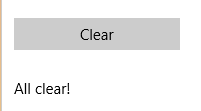
Safari
1. From the Safari menu, select Clear History ...
2. Select the desired time range, and then click  .
.
3. Go to Safari > Quit Safari or press Command-Q to exit the browser completely.
Related Articles
Promoting Interoperability Meaningful Use Stage 3 for Medicaid 2020
This guide offers you explanations, links, and workflows you can use to report for Meaningful Use Stage 3 for Medicaid 2020. REPORTING PERIOD AND REQUIREMENTS The reporting period for 2020: Objectives: Any consecutive 90 days in 2020. Clinical ...