Patient Instructions on Uploading Insurance Card from Portal to Chart
This Knowledge Base article will guide ICANotes users on how their patients can upload a scanned copy (or picture) of their insurance card to the Patient Portal so that it is visible within their chart in ICANotes. The patient will login to the Patient Portal with their credentials - https://patientonlineportal.com and navigate to Forms. In the menu on the left-side, the patient will next click into Uploads/Downloads. 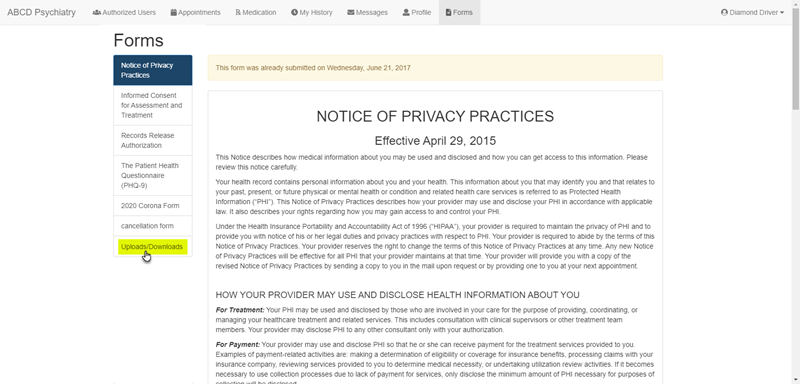 The patient will scroll down to locate Upload Forms and click into the blue area to select the scanned image from their computer.
  In the prompt, the patient will locate and select the copy of their insurance card from their computer.
 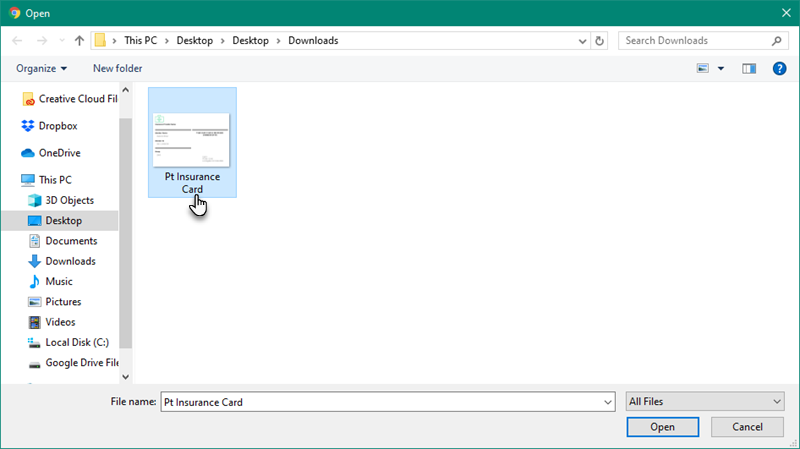 Click Open to upload. *Supported file types are jpg/jpeg, pdf, png, gif, txt, xml, hl7, doc, docx, xls, and xlsx. When successfully uploaded the patient will see a brief green notification at the lower corner of their screen, and the uploaded insurance card will be visible under Uploaded Forms.
  The insurance card image has successfully been uploaded to the patient's chart and can be viewed in the Downloads tab in ICANotes. Click to View this Document to see the image.
  The insurance card image will display as all other documents do.
 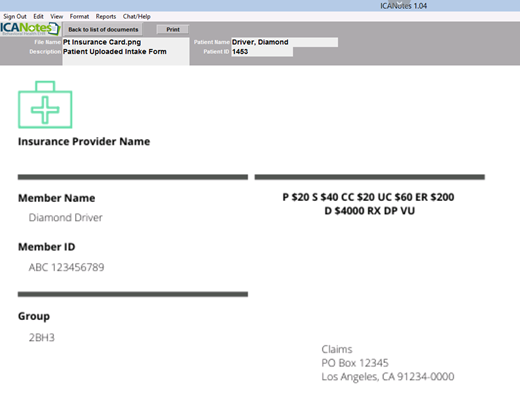 When finished, click to go Back to list of documents at the top left of the screen.
Related Articles
Promoting Interoperability Meaningful Use Stage 3 for Medicaid 2020
This guide offers you explanations, links, and workflows you can use to report for Meaningful Use Stage 3 for Medicaid 2020. REPORTING PERIOD AND REQUIREMENTS The reporting period for 2020: Objectives: Any consecutive 90 days in 2020. Clinical ...