Resubmitting Batch Claims/Statements For Electronic Claims
Please follow the steps below to resubmit the batch file(s):
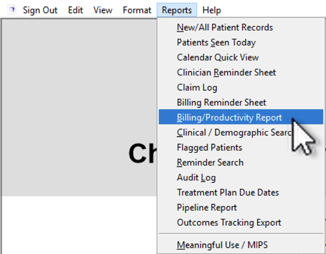
1. Navigate to the Billing/Productivity Report from the Reports menu in ICANotes.
2. Click the  button at the top of the page.
3. Locate the rejected batch file and click the Show button to open the Billing Report (Expanded) for the claims specific to the batch.

4. Use the Prep Claims button at the top of the report to prepare all claims in the batch.
5. Use the Submit Claims button at the top of the report to submit all claims in a new batch file to the clearinghouse.
Related Articles
Promoting Interoperability Meaningful Use Stage 3 for Medicaid 2020
This guide offers you explanations, links, and workflows you can use to report for Meaningful Use Stage 3 for Medicaid 2020. REPORTING PERIOD AND REQUIREMENTS The reporting period for 2020: Objectives: Any consecutive 90 days in 2020. Clinical ...