The Waitroom External Join link for telehealth back office can be used at any time to initiate a telehealth session from the patient/client's side. This is a helpful workaround for those who do not wish to generate a link immediately before the scheduled telehealth appointment, or for those who want to provide their patients with a website link days before the scheduled telehealth session.
Click on the Settings icon, then Waitroom External Join:
In the next screen, click to select the URL: 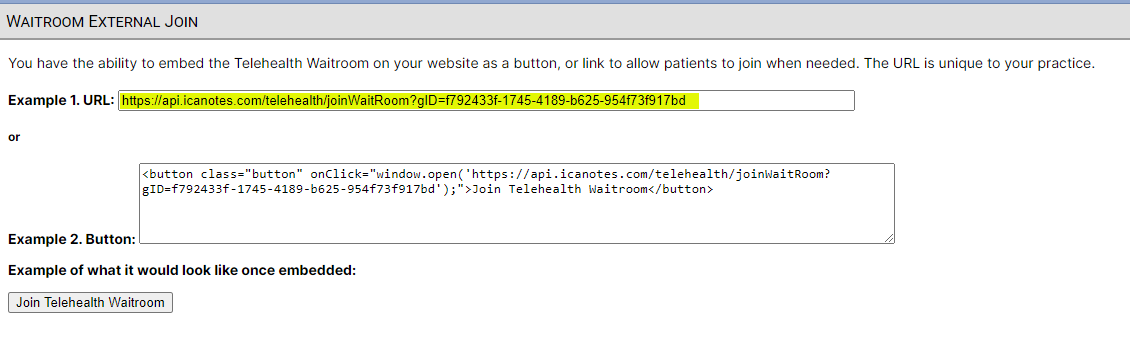
Copy the URL to provide a link clients can use to join the virtual waiting room for a telehealth session. This can be linked on a website or sent in an email, for example. Copy the Button code to embed a button on your website that clients can click on to join the virtual waiting room for a telehealth session.
When finished, click the Close icon at the top right of the internal window to return to the previous screen.
When the unique link is accessed by the client, they will be presented with three steps before entering the virtual waiting room.
Step 1: Enter Information - First Name, Last Name, Date of Birth
Step 2: Contact Details - Cell Phone Number, Email Address (both are optional)
Step 3: Verify details, and enter exam room
This will enter the patient into a telehealth session, which will be visible to the provider or staff user from the back office website.
Crystal Parker
Support Manager
(443) 569-8778
Forgot your password? Get assistance or click here to reset your password.
Schedule a Live Training or Demo
Knowledge Base | Video Tutorials | Live Webinars
Support (443) 569-8778 or ticket@icanotes.com